
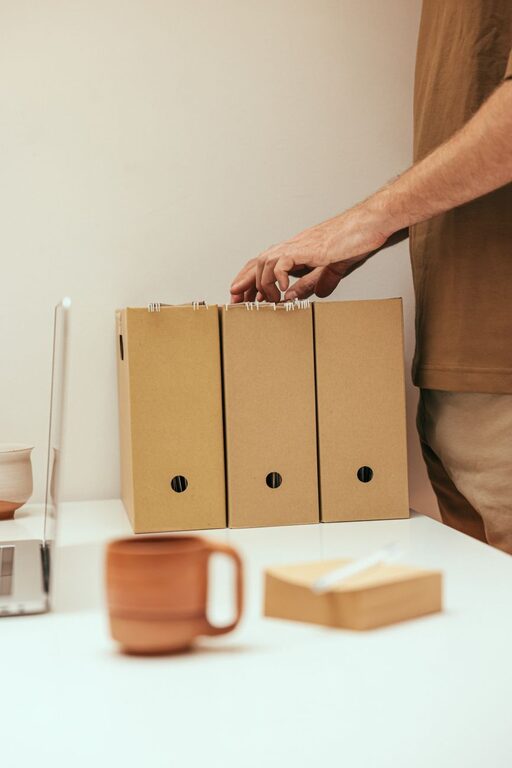
Keeping your computer files organized can save you time, reduce stress, and improve your overall productivity. Whether you use your computer for work, school, or personal projects, a clear folder structure and smart file management make it easier to find what you need when you need it. In this article, we’ll explore practical tips to help you organize your files efficiently.
Why Organizing Files Matters
A cluttered computer can slow you down. When files are scattered across your desktop or buried in random folders, it takes longer to locate important documents. Additionally, well-organized files make it easier to back up your data and keep your system running smoothly.
Start with a Clear Folder Structure
Creating a logical folder hierarchy is the first step to organizing your files.
1. Plan Your Main Categories
Think about the major areas you use your computer for, such as:
– Work or projects
– Personal documents
– Photos and media
– Software and downloads
Create main folders for each category on your primary drive or cloud storage.
2. Use Subfolders for Specific Topics
Within each main folder, add subfolders to break down files into smaller groups. For example, inside “Work,” you might have subfolders for each client or project. Inside “Photos,” organize by year or event.
3. Avoid Too Many Layers
While subfolders help with organization, too many nested folders can make navigation confusing. Aim for a balance between detail and simplicity.
Name Files and Folders Clearly
A clear naming system helps you quickly identify the contents of a file or folder without opening it.
Tips for Naming:
– Use descriptive words, like “Budget_Report_2024” instead of “Doc1”
– Include dates in a consistent format, such as YYYY-MM-DD
– Avoid spaces and special characters; use underscores or hyphens instead
– Keep names short but meaningful
Regularly Declutter Your Files
Just like physical clutter, digital clutter can build up over time.
Schedule Cleanup Sessions
Set a reminder to review and tidy your files every few weeks or months. Delete duplicates, outdated files, and items you no longer need.
Archive Old Files
If you want to keep old files but don’t access them often, move them to an archive folder or external storage. This keeps your main folders focused and efficient.
Use File Management Tools
Many computers have built-in features to help you manage files.
Search Function
Learn to use your computer’s search tool effectively by using keywords, file types, or date ranges. This can save time if you forget a file’s location.
Tags and Favorites
Some operating systems let you tag files with keywords or mark favorites for quick access. Use these features to highlight important documents.
Cloud Storage and Sync
Services like Google Drive, Dropbox, or OneDrive offer automatic syncing and backup. Organizing your files in the cloud means you can access them from multiple devices.
Backup Your Organized Files
An organized system is only safe if you protect your data.
Use External Drives and Cloud Backup
Regularly back up your files to an external hard drive or cloud service. This protects you from data loss due to hardware failure or accidents.
Keep Multiple Backups
Consider keeping backups in more than one location, such as a physical drive and a cloud service.
Maintain Good Habits
Consistency is key to staying organized.
– Save files in the correct folder right away instead of leaving them on your desktop.
– Rename files immediately after creating or downloading them.
– Avoid creating too many similar files; instead, update existing ones when possible.
Conclusion
Organizing your computer files doesn’t have to be complicated. By setting up a clear folder structure, naming files thoughtfully, regularly decluttering, and using helpful tools, you can create a streamlined digital workspace. Good file organization saves you time and frustration, allowing you to focus on what matters most.
Start implementing these tips today and enjoy a tidy, efficient computer setup!